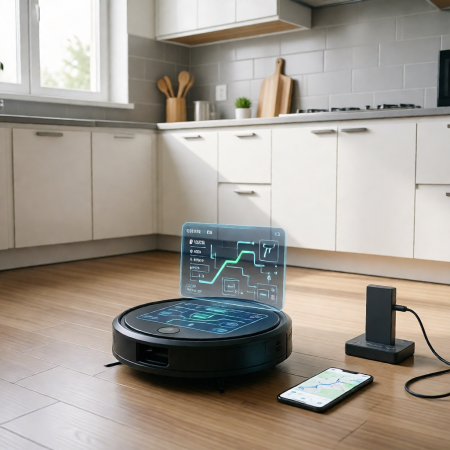
Understanding Robot Vacuum Mapping
Robot vacuums use advanced mapping technologies like LiDAR, vSLAM (Visual Simultaneous Localization and Mapping), and gyroscopic tracking to navigate your home efficiently. LiDAR uses laser sensors to create a detailed layout by measuring distances, while vSLAM relies on cameras to map rooms visually. Gyroscopic tracking helps the vacuum understand its direction and movement.
Accurate mapping is crucial for features like zone cleaning, setting no-go zones, and guiding your robot back to its docking station without getting lost. When the map works well, your vacuum can clean specific rooms, avoid restricted areas, and dock smoothly to recharge.
However, several factors can disrupt mapping, including your home’s environment (like mirrors, shiny floors, or clutter), hardware issues (dirty sensors or wheel slippage), and software glitches (outdated firmware or app errors). Understanding these basics helps you spot why your robot vacuum map is not working as expected and sets you up to fix or prevent issues.
Common Causes of Mapping Issues
Mapping problems in robot vacuums often come down to a few key culprits. First, dirty or obstructed sensors like the LiDAR turret, cliff sensors, or cameras can seriously mess up navigation. If dust, hair, or smudges cover these, the vacuum struggles to create an accurate map.
Next, charging dock placement issues can cause trouble. If the dock is in a narrow space, on an uneven surface, or near reflective materials, the vacuum may have trouble locating it, leading to mapping errors or incomplete home map robot vacuum results.
Environmental interference also plays a big role. Mirrors, shiny floors, low light areas, or moved furniture confuse the vacuum’s sensors and cause distorted robot vacuum map outcomes. Changes in your home layout during cleaning can lead to overlapping robot vacuum map sections or remapping failures.
Software glitches and outdated firmware or apps are common too. If your vacuum’s software isn’t up to date, it may have vSLAM mapping errors or navigation problems, which hurt overall performance.
Finally, physical issues like wheel slippage, low battery during mapping, or confusion between floors (especially in multi-floor mapping fixes) can lead the vacuum to get lost or produce incomplete maps. Interruptions or trapping during cleaning often result in map overlaps or distortions, making the robot vacuum map not working as it should.
Keeping these causes in mind helps you quickly spot why your robot vacuum navigation problems happen and guides you toward the right fixes.
Quick Diagnostic Checklist for Mapping Issues
If your robot vacuum map is not working properly, a quick diagnostic can help pinpoint the problem before diving into fixes. Here’s a simple checklist to follow:
- Check app error codes: Most robot vacuum apps alert you if there’s a mapping or sensor issue. Look out for messages about navigation problems, sensor dirt, or connectivity errors.
- Observe mapping behavior: Watch how your vacuum moves. Is it getting lost, missing areas, or creating overlapping robot vacuum maps? Noticing when and where it struggles can reveal specific mapping glitches.
- Verify Wi-Fi and app connectivity: A weak Wi-Fi signal or app syncing problems can cause your vacuum to fail updating maps or respecting no-go zones. Make sure your phone and vacuum have a stable connection.
- Test in an open area: Run your vacuum in a simple, clutter-free room to see if the incomplete home map or distorted robot vacuum map persists. This helps isolate environmental factors like clutter or reflective surfaces causing mapping errors.
Following these steps early on can save time and guide you toward the right troubleshooting path for better robot vacuum navigation problems. For more detailed insights, check resources like applianceblog.info, which offer helpful guides on robot vacuum issues.
Step-by-Step Troubleshooting Guide for Fixing Mapping Issues in Robot Vacuums
If your robot vacuum map is not working right, follow this straightforward guide to fix common mapping problems.
Basic Maintenance
- Clean sensors: Wipe down the LiDAR turret, cliff sensors, and cameras to remove dust or smudges.
- Check wheels and brushes: Clear hair or debris that may cause slippage or affect movement.
- Clean the LiDAR sensor: A dirty turret leads to distorted robot vacuum maps, so keep it spotless.
Optimize Your Environment
- Relocate the charging dock: Place it on a flat, open surface, away from narrow corners or reflective materials like mirrors. A poorly placed dock can cause charging dock placement issues and navigation problems.
- Remove clutter and reflective surfaces: Mirrors, shiny floors, and moving furniture can confuse the robot and warp the map. Clearing the area helps the robot create an accurate, complete home map.
Software Resets and Updates
- Update firmware and app: Ensure both are up-to-date to fix bugs causing vSLAM mapping errors or freezing.
- Soft reset: Restart your robot and the app to clear minor glitches.
- Factory reset: If problems continue, reset the robot vacuum map totally, deleting old maps for a fresh start.
- Remap your home: Run a new mapping session to generate an updated, accurate plan.
Advanced Fixes
- Restore map backup: If available, load a saved map to avoid remapping from scratch.
- Manual dock placement: Some robots allow manual setting of docking points, especially helpful for multi-floor mapping fixes.
- Multi-floor adjustments: Use your app’s multi-floor mapping tools to manage different levels correctly.
When to Seek Help
- Manufacturer support: Contact customer service if problems persist after these steps.
- Sensor or hardware replacement: Faulty sensors or wheels may need professional repair or replacement.
By following these steps, you can often fix your robot vacuum’s navigation problems and get reliable mapping, keeping your no-go zones and zone cleaning working smoothly.
Prevention Tips for Long-Term Mapping Accuracy
Keeping your robot vacuum’s map working well over time is easier when you follow a few simple habits.
-
Regular sensor cleaning schedule
Dirt and dust on sensors like the LiDAR turret, cameras, or cliff sensors can cause mapping errors. Clean them gently every week or two to avoid a distorted robot vacuum map or navigation problems.
-
Stable dock placement and consistent layout
Place your charging dock on a flat, open spot without mirrors or shiny floors nearby. Avoid moving the dock around—it helps the vacuum learn the space better and reduces issues like the robot vacuum getting lost or incomplete home maps.
-
Best practices for initial mapping runs
For the first map, clear clutter, keep doors open, and let the vacuum run uninterrupted. This builds a solid base map and prevents overlapping robot vacuum map problems or vSLAM mapping errors.
-
Using virtual walls and no-go zones effectively
Set up no-go zones in your app carefully and double-check they save correctly. Good use of virtual walls helps the vacuum avoid tricky spots without confusing the map or causing incomplete areas.
-
Watch for firmware updates
Keep the vacuum’s firmware and app up to date. Updates often fix bugs that impact mapping, like resetting robot vacuum maps or sensor glitches.
Following these tips regularly will keep your robot vacuum’s mapping accurate and hassle-free for the long haul.
Brand-Specific Notes for Mapping Issues
Different robot vacuum brands have their quirks when it comes to fixing mapping issues. For example, some models offer easy remapping options directly within their apps, which can quickly solve a distorted or overlapping robot vacuum map. Others might require simple Wi-Fi troubleshooting steps if the connection drops during mapping, leading to incomplete home maps or navigation problems.
Cleaning key sensors like the LiDAR turret is often brand-specific too—some recommend particular tools or procedures to avoid damage while ensuring accurate mapping. Always check your vacuum’s official app and user manual for tailored advice on sensor cleaning, firmware updates, or factory resets. These resources often provide step-by-step guides that address common causes like no-go zones not saving or multi-floor mapping fixes unique to your model.
Following brand-specific instructions can save time and prevent unnecessary hardware replacements, keeping your robot vacuum mapping smooth and reliable.
FAQs on Robot Vacuum Mapping Issues
Why does my robot vacuum map keep overlapping or getting distorted?
Overlapping robot vacuum maps usually happen when the bot gets stuck, loses track, or restarts mid-cleaning. Interruptions can confuse the mapping system, leading to distorted or repeated areas. Cleaning sensors like the LiDAR turret and ensuring stable Wi-Fi often helps fix this.
How do I reset my robot vacuum map without losing saved zones?
Most apps allow a full map reset or deletion. Resetting clears saved no-go zones and cleaning schedules, so back up the map if your vacuum supports it before resetting. After reset, do a fresh mapping run in a clean, obstacle-free space.
Does dirty sensor affect robot vacuum mapping accuracy?
Absolutely. Dust or smudges on sensors like cameras, cliff sensors, or LiDAR can disrupt navigation and lead to errors. Regularly clean these parts to keep your vacuum mapping accurately and avoid “robot vacuum map not working” issues.
Why is my robot vacuum failing to remap my home correctly?
Remapping issues can be caused by software glitches, outdated firmware, or changes in your home layout. Try updating the firmware, restarting the app, and removing any new reflective surfaces or obstacles. Also, make sure the dock is in the right spot.
How long should a full mapping run take?
Mapping duration depends on home size, furniture, and floor type. Typically, it takes 1 to 2 full cleaning cycles for a complete home map. If it takes much longer or never completes, check for mapping errors, sensor problems, or environment interference.
If you’re facing persistent problems like “robot vacuum gets lost” or “no-go zones not saving,” it might be time to reach out to the manufacturer or check for hardware issues. Regular maintenance and proper setup go a long way in fixing and avoiding these common robot vacuum navigation problems.