
A common misconception when pairing a monitor with the Mac Mini is that any high-resolution screen will provide a crisp, Apple-like visual experience. Many users assume that a 27-inch 4K monitor is the gold standard for clarity because it exceeds the pixel density of standard office displays. However, macOS handles resolution differently than Windows, utilizing a scaling system optimized for specific pixel-per-inch (PPI) targets. When a monitor falls outside these targets—typically around 110 PPI for standard displays or 220 PPI for Retina displays—the operating system must perform heavy lifting to resize the interface. This often results in a subtle blurriness, shimmering text, or a significant hit to system performance as the GPU works to render a non-native resolution. Selecting the right monitor for a Mac Mini requires looking beyond the spec sheet to understand how macOS interprets that hardware.
How macOS Display Scaling Affects Your Monitor Choice
The relationship between screen size and resolution dictates the pixel density, which is the most critical factor for Mac Mini users. Apple’s macOS is designed to look best at either 110 PPI or 218 PPI. Standard 27-inch 1440p monitors hit the 110 PPI mark perfectly, while the 27-inch 5K Studio Display hits exactly 218 PPI. When you connect a 27-inch 4K monitor, you land in a “dead zone” of approximately 163 PPI. At native resolution, the text is too small to read comfortably; when scaled to look like 1440p, the Mac actually renders a 5K image and then shrinks it down to fit the 4K grid. This process consumes extra video memory and can lead to UI lag on base-model Mac Mini units with limited unified memory.
The 220 PPI Retina Standard
For users who want the “Retina” experience where individual pixels are invisible to the naked eye at normal viewing distances, a 5K resolution on a 27-inch panel is the requirement. This provides a 5120 x 2880 canvas. Because macOS scales this exactly 2:1, every interface element is drawn with four times the detail of a standard screen. This results in incredibly sharp typography and high-fidelity photo editing environments. If your budget allows for a 5K display, you eliminate the compromises inherent in software-based scaling.
The 110 PPI Productivity Alternative
If a 5K display is cost-prohibitive, the most logical step down is not always 4K. Many professional environments still utilize 27-inch 1440p (QHD) monitors. While the pixel density is lower, the UI elements are sized correctly by default without any scaling overhead. For the Mac Mini, this is the most efficient way to maximize screen real estate without taxing the M2 or M4 chip’s GPU. However, for those who prioritize crispness for text-heavy work, the 4K 27-inch remains the most popular middle ground, provided you understand that you will likely run it at a “looks like 2560 x 1440” setting.
Comparison of the Best 5K and 4K Monitors for Mac Mini
The current market offers a narrow selection of 5K displays and a massive variety of 4K options. When evaluating these, we look at color accuracy, brightness, and how well the hardware integrates with macOS features like brightness control and volume adjustment. The following table summarizes the leading candidates for the Mac Mini in 2024.
| Model | Resolution | Panel Type | Approx. Price | Key Advantage |
|---|---|---|---|---|
| Apple Studio Display | 5K (5120×2880) | Standard IPS | $1,599 | Native macOS Integration |
| Samsung ViewFinity S9 | 5K (5120×2880) | IPS (Matte) | $899 | Included Height-Adjustable Stand |
| Dell UltraSharp U2723QE | 4K (3840×2160) | IPS Black | $580 | Superior Contrast Ratios |
| ASUS ProArt PA279CRV | 4K (3840×2160) | IPS | $450 | Color Calibration Accuracy |
Apple Studio Display: The Seamless Benchmark
The Apple Studio Display remains the most logical, albeit expensive, companion for the Mac Mini. Its primary strength is not just the 5K panel, but the inclusion of an A13 Bionic chip inside the monitor to handle tasks like Center Stage for the webcam and spatial audio for the six-speaker array. The 600 nits of brightness and P3 wide color gamut ensure that what you see on screen matches the output of other Apple devices. However, the lack of a height-adjustable stand in the base model (a $400 upgrade) and the non-removable power cable are notable drawbacks for users seeking flexibility.
Samsung ViewFinity S9: The Value 5K Alternative
Samsung’s ViewFinity S9 is the first legitimate competitor to the Studio Display in years. It matches the 5K resolution and 99% DCI-P3 color coverage but includes a matte finish and a fully adjustable stand at a significantly lower price point. One specific disadvantage is the build quality; it uses more plastic than the Apple equivalent, and the software interface for built-in smart features can feel cluttered for those who just want a “dumb” monitor. It does, however, support Thunderbolt 4, providing a single-cable solution for the Mac Mini.
Dell UltraSharp U2723QE: The Productivity King
For those willing to compromise on the 5K resolution to save nearly $1,000, the Dell U2723QE is the best 4K option. It utilizes LG’s IPS Black technology, which doubles the contrast ratio of standard IPS panels from 1000:1 to 2000:1. This makes a noticeable difference in deep blacks and dark room viewing. It also acts as a massive USB-C hub, offering Ethernet, KVM switching, and multiple USB-A ports, which helps mitigate the limited port selection on the back of a Mac Mini.
The Mac Mini’s compact design means it relies heavily on the monitor for peripheral expansion. Choosing a monitor with a built-in Thunderbolt hub can save you from buying a separate $200 dock.
Essential Connectivity Features for Mac Mini Desktop Setups
The Mac Mini provides a robust set of ports, but the way you connect your monitor determines the bandwidth available for other devices. Thunderbolt 4 is the preferred connection method. A Thunderbolt-equipped monitor doesn’t just receive a video signal; it sends data back to the Mac at 40Gbps. This allows the monitor to serve as a docking station for external hard drives, microphones, and wired internet. If you use a standard HDMI connection, you lose this data back-channel, forcing you to plug all your accessories directly into the Mac Mini’s limited rear ports.
Thunderbolt 4 vs. USB-C Alt Mode
It is important to distinguish between a monitor with a “USB-C port” and one with a “Thunderbolt port.” While they use the same connector, USB-C Alt Mode typically caps data transfer at 5Gbps or 10Gbps if it is also pushing a 4K 60Hz video signal. This can lead to slow transfer speeds for external SSDs plugged into the monitor. Thunderbolt 4 monitors maintain higher data overhead, ensuring that your workflow isn’t throttled by the display connection. For the Mac Mini M2 Pro or M4 Pro models, which support multiple high-resolution displays, using Thunderbolt allows for daisy-chaining, where one monitor plugs into the back of another, keeping the desk setup clean.
HDMI 2.1 and High Refresh Rates
While creative professionals often prioritize color, a growing segment of Mac Mini users seeks high refresh rates (120Hz or 144Hz) for smoother UI animations. Newer Mac Mini models support HDMI 2.1, which can drive 4K displays at up to 240Hz or 8K displays at 60Hz. If you are a gamer or simply prefer the fluid motion of ProMotion-style displays, ensure your monitor supports HDMI 2.1 or DisplayPort 1.4 via a USB-C adapter. Standard HDMI 2.0 is limited to 4K at 60Hz, which may feel sluggish once you have experienced higher refresh rates.
Evaluating Panel Technology and Color Accuracy for Creative Work
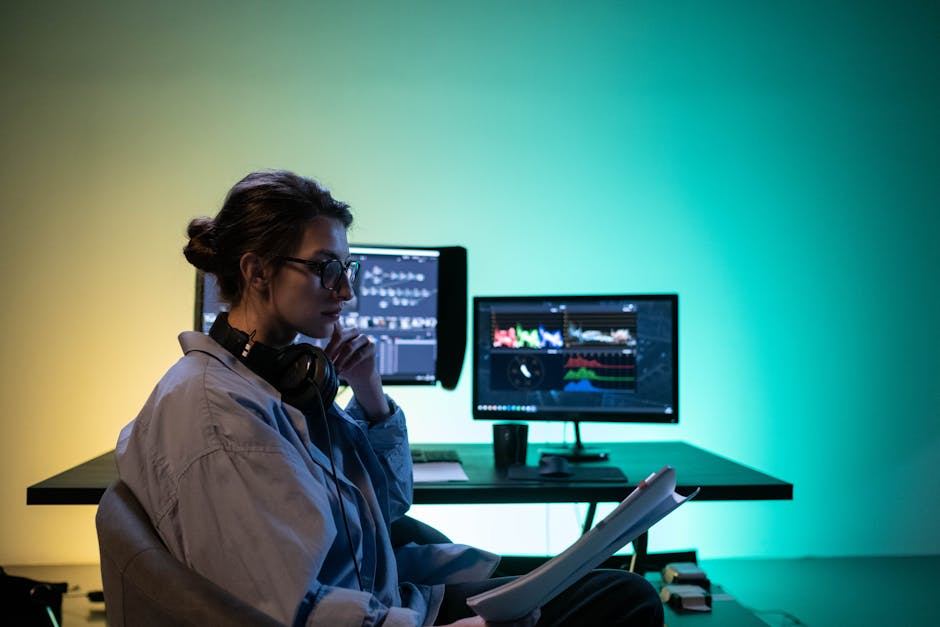
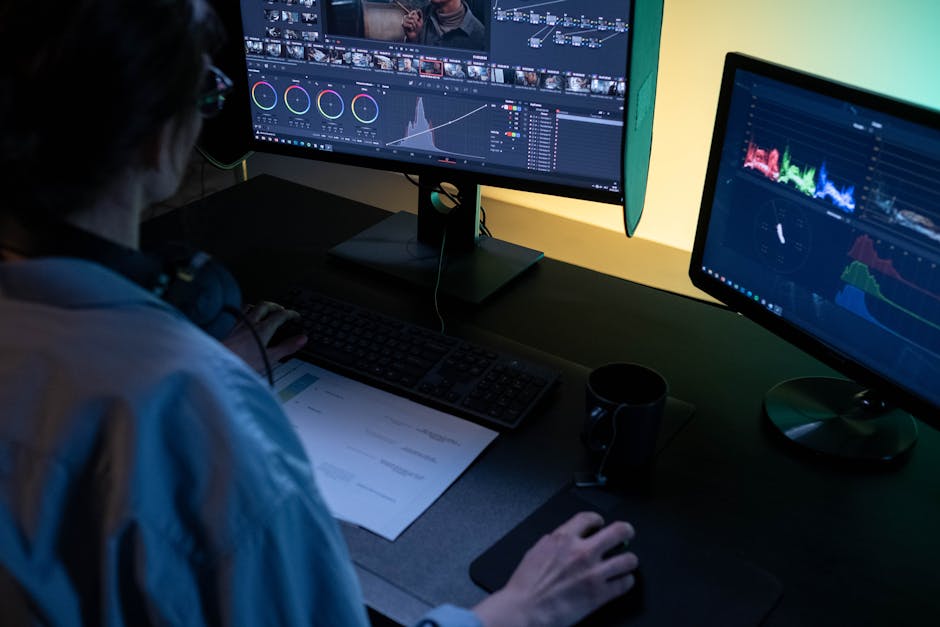
The type of panel inside the monitor determines everything from viewing angles to how “black” a black pixel looks. For the Mac Mini, IPS (In-Plane Switching) panels are the standard because they offer 178-degree viewing angles and consistent color. However, not all IPS panels are equal. Professional-grade monitors in the ASUS ProArt or BenQ DesignVue lines undergo factory calibration to ensure a Delta E value of less than 2, meaning the human eye cannot perceive the difference between the intended color and the displayed color.
DCI-P3 vs. sRGB Gamuts
Apple’s software and hardware are built around the DCI-P3 color gamut, which offers 25% more color space than standard sRGB. If you are editing video for YouTube or photos for print, using a monitor that only covers 100% of sRGB will result in muted colors compared to what a viewer sees on an iPhone or MacBook screen. Look for monitors that specify at least 95% DCI-P3 coverage. This ensures that the vibrant oranges and deep greens captured by modern cameras are accurately reproduced on your Mac Mini setup.
Ergonomics and Long-Term Reliability
The Mac Mini is a stationary desktop, meaning your monitor’s stand is your primary interface for physical comfort. Many “budget” 4K monitors save costs by providing a tilt-only stand. For a professional workspace, a stand with height, swivel, and pivot (rotating to vertical) adjustments is non-negotiable. A monitor positioned at the wrong height leads to cervical spine strain over long work sessions. Furthermore, consider the power delivery (PD) capabilities of the monitor. Even though the Mac Mini has its own power cable, a monitor providing 90W PD through USB-C can power other accessories or even charge a secondary MacBook Pro you might occasionally bring to the desk, making the monitor the central power hub of the home office.
Ultimately, the best monitor for a Mac Mini is one that respects the specific scaling requirements of macOS while providing the connectivity needed to expand the Mini’s utility. While the Apple Studio Display is the most cohesive choice, the emergence of IPS Black 4K panels and competitive 5K alternatives from Samsung has made it possible to build a high-end workstation that fits a variety of professional budgets and technical needs.