
The Framing That Leads to Expensive Storage Decisions
The popular take goes like this: SSDs are fast, HDDs are slow, therefore SSD is always better. That logic is half-right — and it causes people to overspend on flash storage they don’t need, or dismiss hard drives that would have served them well at a fraction of the cost.
These two technologies are not competing versions of the same product. They have different cost structures, different failure modes, and different jobs to do. Treating them as simply “better” and “worse” misses how each one actually performs in practice — and leads to the wrong purchase almost as often as the right one.
How SSDs Store Data
Solid-state drives store data on NAND flash memory chips. No moving parts, no mechanical heads, no spinning platters. When your computer requests a file, the drive locates it almost instantly regardless of where it sits in storage. This is called random read performance, measured in IOPS (input/output operations per second), and it is the single number that most directly determines how responsive your computer feels during normal use.
A budget SATA SSD manages around 90,000–98,000 random read IOPS. That matters every time Windows boots, every time an application launches, every time the browser pulls cache files. All of those operations involve scattered small reads across the drive — exactly the work SSDs handle without breaking a sweat.
How HDDs Store Data
Hard drives store data on spinning magnetic platters. A physical read/write head moves to the location of the data — a mechanical process measured in milliseconds. That sounds manageable until you compare it to an SSD doing the same work in microseconds. Random read performance on a 7200 RPM hard drive tops out around 100–150 IOPS. The gap is not small.
Where HDDs compensate is density and cost. Magnetic storage is cheaper to manufacture per gigabyte than NAND flash, and that gap has not fully closed. A 4TB hard drive sells for around $70 in 2026. A 4TB SSD costs $250 or more. For use cases where raw capacity matters and speed does not, the physics still favor spinning drives.
Speed Numbers Across All Three Storage Types
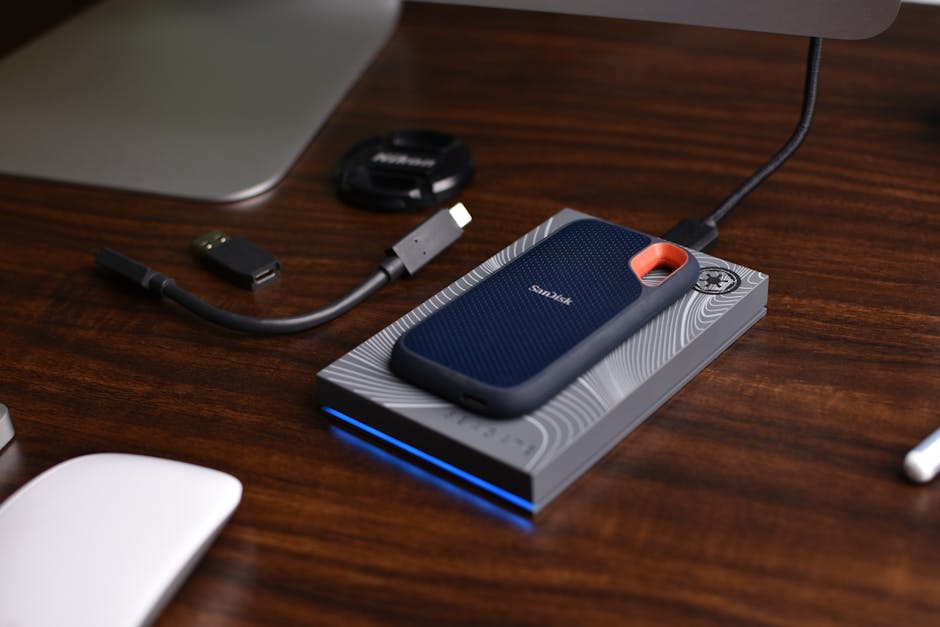
Drive marketing almost always leads with sequential read speed — what you see when transferring one large file. What actually determines how a machine feels to use is random read performance. Here is how the three main storage types compare on both metrics, using widely available consumer drives as reference points:
| Drive Type | Example Drive | Sequential Read | Random Read IOPS | Typical Boot Time | Price per GB |
|---|---|---|---|---|---|
| 7200 RPM HDD | Seagate Barracuda 2TB | 190 MB/s | ~150 | 40–70 sec | ~$0.02 |
| SATA SSD | Samsung 870 EVO 1TB | 560 MB/s | 98,000 | 8–15 sec | ~$0.09 |
| NVMe SSD (PCIe 4.0) | Samsung 990 Pro 1TB | 7,450 MB/s | 1,400,000 | 6–10 sec | ~$0.08 |
The random read gap between HDD and SATA SSD is roughly 650 times. That is what you feel when a machine with a spinning drive seems to pause before doing anything. It is not the processor — it is the drive struggling with hundreds of small concurrent requests.
The gap between SATA SSD and NVMe is large in benchmarks and smaller in daily use for most people. Boot times between the two categories differ by only a few seconds. Transferring a single large file is where the 13x sequential speed difference actually shows up. More on when that matters in a later section.
Boot times above are approximate under Windows 11 with comparable consumer hardware. Installed software, background services, and RAM configuration all influence the final number, but the category-level differences hold consistently across real-world testing.
Three Situations Where Buying an HDD Is the Smarter Call
Anyone telling you to replace every hard drive you own with SSD is either ignoring prices or has not tried storing 8TB of video footage on flash memory. Hard drives have a genuine lane. These are the three use cases where buying one is not a compromise — it is the correct decision.
- Long-term media archives. Raw photo files accumulated over years of shooting, old video project exports, home footage, 4K movie libraries — if you open these a few times a month at most, access speed is irrelevant to your experience. A WD Blue 4TB (~$70) stores four times what a 1TB SSD holds at roughly a quarter of the per-gigabyte cost. Buying SSD for cold storage means spending an extra $180–220 for performance you will never notice or need.
- Home NAS and always-on storage systems. Network-attached storage drives run continuously. Purpose-built NAS drives — the WD Red Plus 4TB (~$85) and Seagate IronWolf 6TB (~$110) — are rated for 24/7 operation, include vibration compensation designed for multi-drive enclosures, and carry workload ratings suited to constant read/write cycles. NAS-optimized SSDs exist but cost significantly more without delivering practical benefits for home media servers, backup targets, or Plex setups. At this use case, NAS-grade HDD remains the sensible default.
- Secondary storage in a desktop build. Running Windows and active applications on a 500GB–1TB SSD while using a 2–4TB HDD for games in rotation, downloads, archived projects, and local backups is standard practice in desktop builds for a reason. The SSD handles performance-critical tasks; the HDD handles volume. This setup typically costs $60–70 for the SSD plus $50–70 for the HDD — less total than a 2TB SSD alone, with more usable capacity overall.
In all three scenarios, swapping HDD for SSD means paying more money for performance you will not use. That is not a tradeoff — it is just a worse purchase.
Your OS Drive Should Be SSD. There Is No Reasonable Counterargument.

Running Windows 11 on a mechanical hard drive in 2026 is not a budget-conscious choice. It is a daily performance penalty that compounds over time as Windows grows heavier with updates and installed software.
The operating system performs constant small reads and writes: startup services loading, search indexes updating, prefetch data refreshing, swap file access when RAM fills. All of that is random I/O. A 7200 RPM HDD handles roughly 150 IOPS. A basic SATA SSD handles 90,000+. That 600x gap is the difference between a machine that boots in 10 seconds and one that takes 60 — and between applications that open instantly and ones that make you wait.
Upgrading an Older PC
If you have a laptop or desktop from 2013–2019 that feels unusably slow, check whether it is running its OS off a hard drive before assuming the processor needs replacing. Swapping a spinning boot drive for a Crucial BX500 500GB SATA SSD (~$38) is a $40 repair that can transform the daily experience of using that machine. CPU performance does not change. Application responsiveness does — dramatically. For machines with M.2 slots, the Crucial P3 Plus 500GB NVMe (~$40) is equally affordable and faster, but either choice is a major improvement over spinning media.
What to Buy for a New Build
For a new Windows PC, a 500GB–1TB NVMe is the minimum for the system drive. The WD Blue SN580 1TB (~$60) is the straightforward choice — PCIe 4.0, 4,150 MB/s reads, runs cool without a heatsink, fits any M.2 slot from a motherboard made after 2017. Spending more than $80–90 on a boot drive delivers diminishing returns for typical home or office workloads. The meaningful upgrade past the SN580 is going to 2TB for more application and OS headroom, not going to a faster but same-capacity drive.
NVMe vs SATA SSD: The Honest Answer on When the Gap Matters
Is the performance difference real?
Yes. NVMe drives use PCIe lanes connecting directly to the CPU, bypassing the SATA controller entirely. PCIe 4.0 NVMe drives reach 7,000–7,450 MB/s sequential reads. SATA SSDs cap at 560 MB/s. On paper that is a 13x difference.
Does that gap appear in everyday computing?
For most tasks, no. Booting Windows, loading a browser, switching between open applications, launching standard software — none of these operations consistently push SATA SSD speeds to their ceiling. The CPU, RAM, and application code become the bottleneck well before the drive does. The perceived difference between a SATA SSD and a mid-range NVMe during normal desktop use is minimal for the majority of users.
Where NVMe earns its cost: transferring large files repeatedly (50GB+ video footage batches, large game installs), workloads using DirectStorage decompression in recent games, and disk-intensive professional tasks like video timeline rendering, database operations, or compiling large codebases. If your work regularly involves multi-gigabyte files moving in and out of storage, NVMe makes a measurable difference. If you primarily browse, write, work in office software, and play standard titles, a SATA SSD handles everything without compromise.
One thing to check before buying an NVMe drive
Most motherboards made after 2016 have at least one M.2 slot. But some older M.2 slots only support SATA — they physically accept NVMe drives but limit speeds to the SATA ceiling. Installing a PCIe 4.0 NVMe drive in one of those slots will not damage anything, but you will pay NVMe prices for SATA performance. Check the motherboard manufacturer’s product page before ordering. It lists which M.2 slots are PCIe NVMe and which are SATA-only. A five-minute check avoids a frustrating and expensive mistake.
Specific Drives Worth Buying in 2026
Concrete recommendations at current US retail pricing. These hold up well across independent long-term reliability data, not just manufacturer spec sheets.
Best SATA SSD: Crucial MX500 1TB (~$65)
The Crucial MX500 consistently ranks among the most reliable SATA SSDs across long-term consumer tracking. It reads at 560 MB/s, writes at 510 MB/s, and carries a 360 TBW endurance rating on the 1TB model — well above what most home users accumulate in five years of normal use. The Samsung 870 EVO 1TB (~$90) is marginally faster in sustained writes and carries stronger brand confidence, but at $25 more per terabyte, the MX500 is the better value purchase for most setups. Both are safe choices; the Samsung costs more for incremental gains that most users will never notice.
Best NVMe SSD: WD Blue SN580 1TB (~$60)
The WD Blue SN580 is the default recommendation for general-purpose builds because it delivers PCIe 4.0 performance at a price most competitors cannot match. At 4,150 MB/s sequential reads, it clears any practical desktop workload cleanly, runs without requiring a heatsink, and uses a single-sided design that fits thin laptop chassis. For professional video editing or high-frequency large-file work where sustained throughput matters, the Samsung 990 Pro 1TB (~$80) delivers 7,450 MB/s reads and better performance under sustained heavy load. For everything else, the SN580 is enough drive and does not need replacing.
Best HDD for Bulk and NAS Storage
For desktop secondary storage: the Seagate Barracuda 2TB (~$50) and WD Blue 4TB (~$70) are both reliable desktop drives with years of RMA data behind them. For NAS use, spend the extra $15–20 and get the WD Red Plus or Seagate IronWolf — those carry the 24/7 operation ratings and vibration tolerance that multi-drive enclosures require. Running a desktop consumer drive in a NAS is not guaranteed to fail immediately, but the NAS-specific drives are built for that load profile and the price premium is modest relative to the total system cost.
The Setup That Works for Most People
Desktop users: a 1TB NVMe for Windows and your most-used applications, a 2–4TB HDD for everything else. The WD Blue SN580 plus a WD Blue 4TB runs about $130 combined. That gets you fast boot and application performance plus enough secondary storage for years of typical use — more practical capacity than a 2TB SSD alone, at lower cost.
Laptop users typically have one M.2 slot and no room for a secondary drive. SSD only, full stop. A 1TB NVMe covers most people comfortably. For extra capacity, a portable HDD over USB works well for files you do not need constantly — media libraries, project archives, backups.
For external backup drives, a 4TB portable HDD from Seagate or WD (~$75–85) gives you real backup capacity at a price no portable SSD matches at the same volume. Backup drives sit idle most of the time. Their speed is irrelevant. Their cost per gigabyte is the only number that matters.
The argument that SSD always wins holds in exactly one place: the drive your operating system lives on. Everywhere else, the right storage type is the one that fits what you actually do with it.