
Google’s smart home lineup has a reputation problem. The company has killed products, rebranded entire categories, and confused buyers for years. But the current Nest ecosystem — built around the Google Home app and the Matter protocol — is the most coherent it has ever been. This guide cuts through the noise and tells you exactly what to buy and in what order.
How the Google Home Ecosystem Actually Works
Before buying anything, understand what you’re joining. Google’s smart home platform has three layers, and knowing them prevents expensive mistakes.
The first layer is Google Home — the app and the cloud service that ties everything together. You control every device from one place: lights, locks, cameras, thermostats. The redesigned interface groups devices by room and surfaces automations without burying them in menus. It’s meaningfully better than it was two years ago.
The second layer is the Nest hardware family. This is Google’s own line of cameras, speakers, displays, thermostats, doorbells, and smoke detectors. Nest devices connect directly to Google Home with zero configuration friction. First-party hardware gets software updates faster and integrates more deeply than third-party gear — that’s a real advantage, not a marketing claim.
The third layer is Matter — the open smart home standard that Google, Apple, Amazon, and Samsung all support. Matter means a Yale Assure Lock 2 or a Philips Hue bulb can work inside Google Home without a proprietary hub. Two years ago, buying a non-Nest device meant wrestling with separate apps and unreliable integrations. Today, Matter-certified devices mostly just work.
One important caveat: Google Home still requires a stable Wi-Fi network and at least one Google Home-compatible speaker or display to function well. Think of that first Google Nest Audio or Nest Hub as your system’s foundation, not just a speaker. Everything else builds on top of it.
Thread, another protocol Google supports, adds a mesh network layer that lets battery-powered sensors and locks communicate without a direct Wi-Fi connection. The Google Nest Wi-Fi Pro doubles as a Thread border router — which matters if you plan to add smart locks or contact sensors later. Skip it if your current router is solid and you’re keeping things simple.
The 7 Google Smart Home Devices Worth Buying
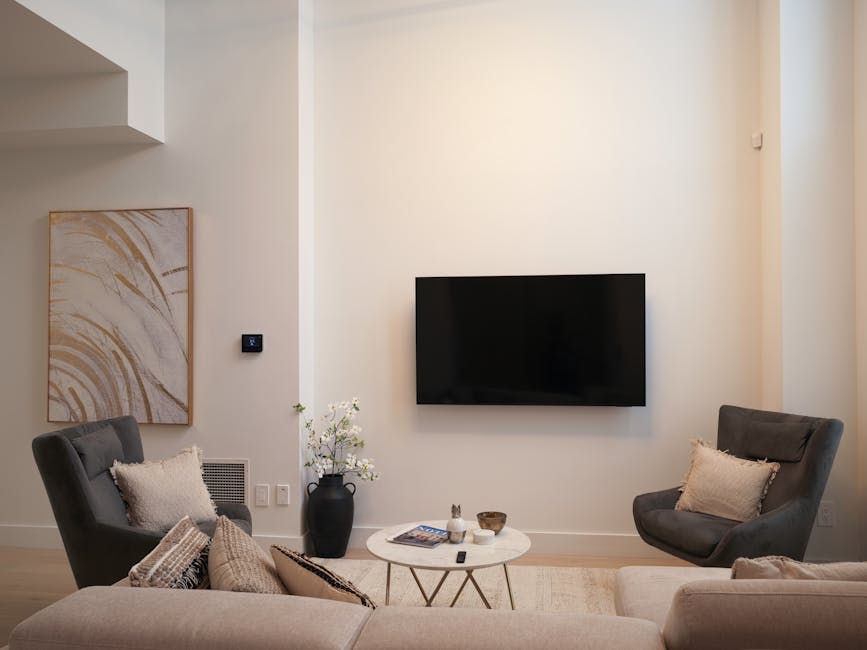
Ranked by the order most households should buy them — not by price or popularity.
-
Google Nest Audio — $99
Start here. The Nest Audio is the best-sounding Google speaker at a reasonable price: 75mm woofer, 19mm tweeter, fabric-wrapped enclosure that doesn’t look like tech gear. It functions as your primary Google Home controller and voice interface. One is enough to start; two in stereo pair make a real listening setup for a living room.
-
Google Nest Thermostat — $129
The single device with the clearest ROI. The Nest Thermostat learns your schedule over a week and cuts heating and cooling waste by an average of 10–12% annually, according to Google’s data. Third-party studies on earlier Nest models showed similar figures. Installation takes 30 minutes with a standard C-wire setup. No C-wire? The Nest Thermostat ships with a power adapter. The OLED display shows outdoor temperature and humidity without any extra configuration.
-
Google Nest Hub (2nd Gen) — $99
A 7-inch smart display for the kitchen counter or nightstand. What makes it different from a tablet: no camera (better for bedrooms), sleep tracking via radar sensor, and it functions as a Chromecast. Recipe walkthroughs, doorbell camera previews, and morning routines all make sense on a dedicated display. Skip the Nest Hub Max ($229) unless you specifically need the built-in camera for video calls — the standard model handles everything else identically.
-
Google Nest Doorbell (Wired) — $179
Records in HDR with a 145-degree field of view that captures full-body to head shots without fish-eye distortion. Motion detection zones are fully customizable. Familiar face alerts — it learns to recognize regular visitors — require a Nest Aware subscription at $8/month, but basic motion alerts and live view are free with no subscription required.
-
Google Nest Cam (Indoor, Wired) — $99
1080p with night vision, person/vehicle/animal detection, and two-way audio. Basic live view and 3-hour event history are free. For 30-day event storage and more detailed alerts, Nest Aware at $8/month covers up to 5 cameras. If you only need one indoor camera, this is the right starting point — it covers the widest range of use cases at the lowest price.
-
Google Nest Wi-Fi Pro — $199 (single unit)
Wi-Fi 6E across three bands (2.4GHz, 5GHz, 6GHz) with a Thread border router built in. If your household already has solid Wi-Fi from a recent router, skip this. But if you’re running gear older than 2026, or plan to add Thread-based devices like the Eve Energy plug or Yale Assure Lock 2, this unit pays for itself in reliability. Each additional mesh node adds $199 and covers roughly 1,500 square feet.
-
Google Nest Protect — $119
A smoke and carbon monoxide detector that tells you which room has the problem — not just that there is one. It integrates with the Nest Thermostat: if CO is detected, the HVAC shuts off automatically. That single integration justifies the price over a standard $25 detector. Replace the battery every 6 years, and the unit itself every 10 years per manufacturer guidelines.
Google vs. Amazon vs. Apple: An Honest Platform Comparison
For most households with Android phones and a mix of devices, Google is the right default. But that answer is wrong for a meaningful share of buyers. Here’s where each platform actually wins.
| Platform | Best For | Real Weakness | Entry Device |
|---|---|---|---|
| Google Home | Android users, voice-first households, mixed device brands | Cloud-dependent; history of product cancellations | Nest Audio ($99) |
| Amazon Alexa | Widest third-party compatibility, budget buyers | Cluttered app; Alexa voice responses increasingly commercial | Echo Dot 5th Gen ($49) |
| Apple HomeKit | iPhone/Mac households that prioritize local processing and privacy | Highest cost, fewest compatible device brands | HomePod Mini ($99) |
| Samsung SmartThings | Samsung appliance owners, Zigbee/Z-Wave device users | Weak voice assistant; complex setup interface | SmartThings Hub ($129) |
One situation where Google clearly loses: if your household runs 100% iPhone and Mac. Apple HomeKit processes more automations locally, which means faster response times and fewer privacy concerns about cloud-connected microphones. Google Home relies heavily on cloud processing for most commands — that’s a real architectural difference, not a branding distinction.
Amazon Alexa still has the broadest device compatibility — more brands certify for Alexa than for any other platform. But the Echo hardware doesn’t match the Nest Audio’s sound quality at the same price point, and Alexa’s behavior has become more commercially oriented since 2026.
Setting Up a Google Smart Home: The Order That Actually Works
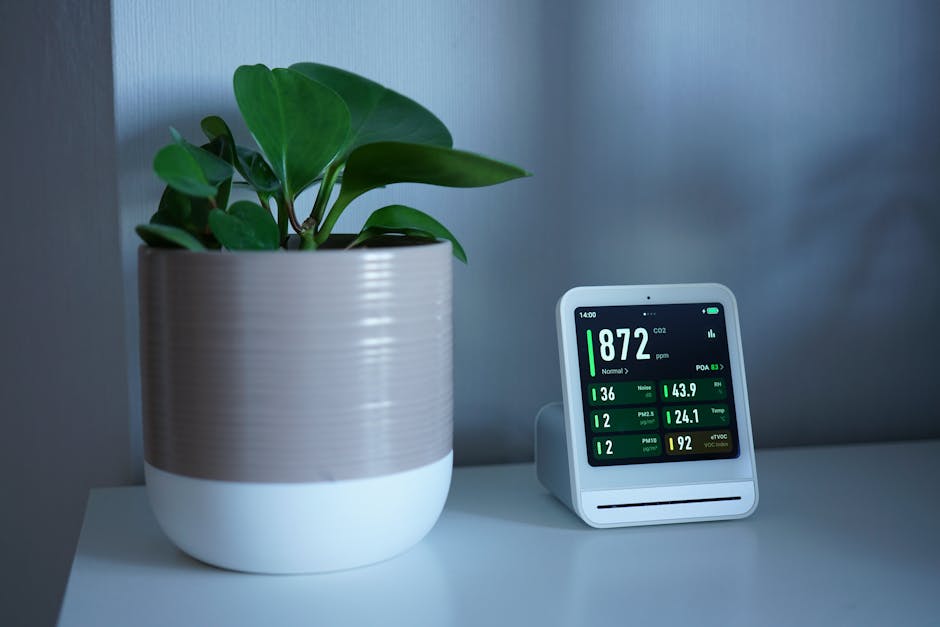
Most setup failures come from skipping steps or adding devices before the network is stable. Follow this sequence and you’ll avoid the problems most people post about in forums.
Step 1: Fix Your Wi-Fi Before Touching Anything Else
Smart home devices fail most often because of the network, not the device. Before adding anything, confirm your router broadcasts 2.4GHz and 5GHz as separate networks with separate names. Smart home devices — especially older Nest Thermostats and budget sensors — only connect on 2.4GHz. If your router merges both bands under one SSID (a common default), some devices will fail to pair or drop connections intermittently. The Google Nest Wi-Fi Pro handles band steering automatically, which is the main reason it simplifies installation for larger setups.
Step 2: Add Your First Speaker and Configure Rooms Precisely
Download Google Home, create a home, define each room. Plug in your Nest Audio. Pairing takes under 3 minutes. Name rooms accurately — “Kitchen” not “Downstairs,” “Master Bedroom” not “Our Room.” Voice commands depend entirely on room names. The command “turn off the kitchen lights” only executes correctly if your lights are assigned to a room called Kitchen. This sounds obvious, but poorly named rooms are the number one cause of voice command failures in the first week of use.
Step 3: Install High-Impact Devices Before Smart Bulbs
Standard setup guides say start with smart bulbs because they’re easy. Don’t. Install the Nest Thermostat first — it has the clearest financial payoff and the most involved physical installation. Get that working and confirmed before adding anything else. Then add cameras and the doorbell, which require positioning decisions and power access. Lights come last. You can add 10 Philips Hue bulbs in a single afternoon once your network is confirmed stable.
Step 4: Build Automations Slowly — Two Is Enough to Start
Google Home’s automation system uses Routines: triggers (time, voice, location, device state) that activate chains of actions. Start with exactly two. A morning routine that raises the thermostat and turns on lights at a set time. An away routine triggered by leaving home that lowers the thermostat and — if you have a Yale Assure Lock 2 or similar — locks the front door. Complex multi-device automations can come later. Overbuilding automations on day one creates conflicts and unpredictable behavior that’s hard to debug.
Three Things That Actually Break Google Smart Homes
These are the real failure modes — not theoretical edge cases, but common mistakes that cause returns and regret.
Wrong Wi-Fi band during setup. If a Nest device won’t pair, it’s almost always because your phone is connected to 5GHz and the device needs 2.4GHz. Temporarily switch your phone to your 2.4GHz network during installation. Switch back once pairing completes. This solves roughly 80% of pairing failures.
Buying the Nest Hub Max when you don’t need it. The $229 Nest Hub Max adds a built-in camera and marginally better speakers over the $99 Nest Hub. If you don’t plan to use it for video calls, that extra $130 is wasted. Every other function — recipe display, camera feeds, sleep tracking, Chromecast — works identically on the standard model.
Expecting full functionality without a Nest Aware subscription. Google markets features that require $8/month without making that obvious at the point of purchase. Person detection, familiar face alerts, and 30-day event history all need Nest Aware. Budget for $80/year from the start, or consider a camera like the Eufy Indoor Cam 2K ($49), which stores footage locally on a microSD card and requires no subscription for core features.
What a Full Google Smart Home Setup Costs by Room

This breakdown covers a 3-bedroom home. Prices reflect early 2026 retail. Priority ratings reflect impact-to-cost ratio, not personal preference.
| Room / Area | Device | Price | Priority |
|---|---|---|---|
| Living Room | Google Nest Audio | $99 | Essential |
| Kitchen | Google Nest Hub (2nd Gen) | $99 | Essential |
| Whole Home | Google Nest Thermostat | $129 | Essential |
| Front Door | Google Nest Doorbell (Wired) | $179 | High |
| Security | Google Nest Cam (Indoor, Wired) | $99 | High |
| Safety | Google Nest Protect ×2 | $238 | High |
| Lighting | Philips Hue Starter Kit (4 bulbs + Bridge) | $179 | Optional |
| Entry Lock | Yale Assure Lock 2 (Matter-compatible) | $199 | Optional |
| Network | Google Nest Wi-Fi Pro ×2 | $398 | If needed |
| Essential-only total | $327 | ||
| Full setup total | ~$1,619 | ||
The $327 essential-only setup — Nest Audio, Nest Hub, Nest Thermostat — covers the three highest-impact use cases without overcommitting. That’s the right starting point if you’re unsure whether a smart home fits your actual routine. Add security cameras and Nest Protect next if home monitoring matters to you. Lighting and locks improve convenience but don’t change how the core system functions — they’re additions, not foundations.